UML

Dr. Ashish Sai

Introduction to UML

Unified Modeling Language

  • The Unified Modeling Language (UML) is a standardized modeling language enabling developers to specify, visualize, construct, and document artifacts of software systems.

Unified Modeling Language

  • Standardization: The Object Management Group (OMG) adopted UML as a standard in the mid-1990s.

“The Unified Modeling Language is a visual language for specifying, constructing, and documenting the artifacts of systems.” - OMG, 2003

Applications of UML

  • Software Design: Models software’s architecture of all sizes.

  • Business Process Modeling: Visualizes workflows and operations.

  • Database Design: Represents data models and relationships. 1.

Analysis and Design in UML

UML’s Role in Analysis:

  • Understanding the Problem Domain: Can help visualize system requirements and actors, clarifying the build objectives.

  • Specifying Requirements: Can help detail system interactions and flows, forming the requirement specifications.

Analysis and Design in UML

UML’s Role in Design:

  • Planning the Solution: Class and component diagrams clarify system structure and relationships.

  • Defining System Architecture: Deployment and package diagrams depict system architecture including hardware, software, and middleware components.

  • Detailed Design: State and interaction diagrams detail component behavior and interactions.

Analysis and Design in UML

From Analysis to Design:

  • Transitioning Models: UML eases the shift from ‘what’ (analysis) to ‘how’ (design) with consistent notation.

  • Progressive Refinement: Initial models evolve into detailed designs, aligning closely with requirements.

UML as a Language - Overview

Beyond Notation:

  • UML isn’t just a collection of diagrams;

    • a comprehensive language with syntax and semantics for system modeling and documentation.

Types of UML Diagrams:

  • UML encompasses 14 different types of diagrams
    • Type
      • Structural
      • Behavioral
      • Interaction

Structural Diagrams - Overview

Structural diagrams depict the static aspects of the system. They show how elements in the system are related and organized.

Types of Structural Diagrams

  1. Class Diagram: Classes, attributes, methods, relationships.
  2. Object Diagram: Class instances at a specific time.
  3. Component Diagram: Components, dependencies, runtime view.
  4. Composite Structure Diagram: Internal class/component structure.
  5. Deployment Diagram: Software-hardware deployment.
  6. Package Diagram: Element organization and dependencies.
  7. Profile Diagram: Introduces new UML stereotypes.

Behavioral Diagrams - Overview

  • Behavioral diagrams represent the dynamic aspects and the behavior of the system over time.

Types of Behavioral Diagrams:

  1. Use Case Diagram: Captures the functionality of the system from an end-user perspective.

  2. Activity Diagram: Illustrates the dynamic nature of the system by modeling the flow of control from activity to activity.

  3. State Machine Diagram: Shows the states of an object and transitions between these states.

Interaction Diagrams - Overview

  • Interaction diagrams are a subset of behavioral diagrams that detail how elements in the system interact with each other.

Types of Interaction Diagrams:

  1. Sequence Diagram: Message flow order among objects.

  2. Communication Diagram: Object interactions via sequenced messages.

  3. Interaction Overview: Interactions overview with framed depictions.

  4. Timing Diagram: Object behavior over time and changing conditions.

Use Case

Use Cases

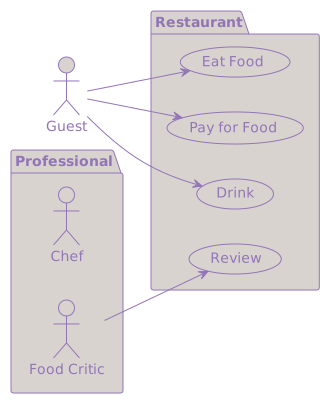
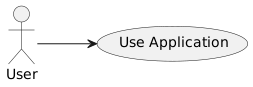
  • Narratives that describe how actors (users or other systems) interact with a system to achieve a specific goal.

  • Why Use Cases?

    • Help in understanding and communicating functional requirements.

Components of a Use Case

  • Actors: Entities that interact with the system. They can be users, other systems, or hardware devices.
  • Scenarios: Specific sequences of actions and interactions between actors and the system.
  • Goals: The end result that the actor wants to achieve through the use case.

Components of a Use Case

Designing Use Cases

Key Elements for Effectiveness:

  • Clarity: Use clear, jargon-free language accessible to all.

  • Completeness: Include all event sequences, normal and exceptional.

  • Consistency: Uniform detail and format across use cases.

Importance of Clarity and Simplicity

Example of a Bad Use Case (Lack of Clarity):

  • Title: System Authenticate User

  • Description: User invokes system authentication subroutine and inputs credentials via UI. System hashes input and compares against DB. On match, system initializes user session.

Issues:

  • Filled with technical jargon and unclear terms.

  • Assumes in-depth technical knowledge.

Importance of Clarity and Simplicity

Improved Version:

  • Title: User Logs In

  • Description: The user enters their username and password. The system checks the credentials and, if they’re correct, grants access to the user’s account.

Ensuring Completeness

Completeness:

  • A complete use case provides a full picture, including all possible sequences and outcomes.

Example of a Bad Use Case (Lack of Completeness):

  • Title: User Makes a Purchase

  • Description: The user selects products and purchases them.

Ensuring Completeness

Issues:

  • Overly simplistic and vague.

  • Doesn’t include steps like choosing a payment method or handling errors.

What to Add:

  • Detailed steps from product selection to transaction completion.

  • Alternative paths, such as item unavailability.

  • Error handling, like payment failure.

Maintaining Consistency

Consistency:

  • Consistent use cases make it easier for stakeholders to understand and compare different scenarios.

Example of a Bad Use Case (Lack of Consistency):

  • Title: User Submits Feedback

  • Description: A detailed and technical description with steps, including system operations and database transactions.
Maintaining Consistency

Issues:

  • Too detailed compared to other use cases.

  • Inconsistent format and level of detail.

How to Improve:

  • Align the level of detail with other use cases.

  • Use a consistent format and language style throughout.

Use Case Diagrams

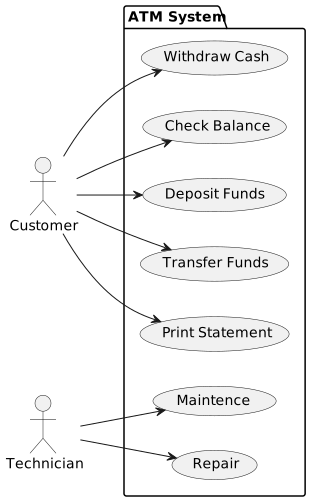
  • Visualizing Interactions: Use case diagrams offer a way to visually represent the relationships between actors and use cases.
  • Identifying Relationships: Diagrams can show ‘include’, ‘extend’, and generalization relationships among use cases.

Example: ATM System Use Case Diagram

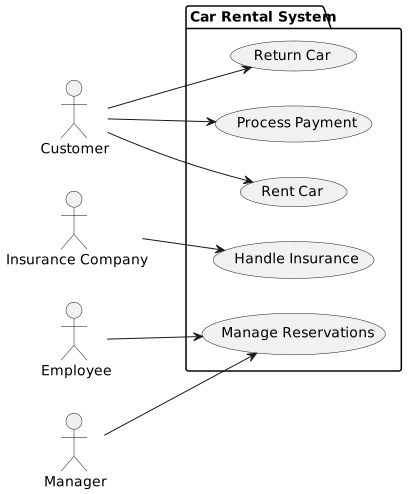
Example: Car Rental System

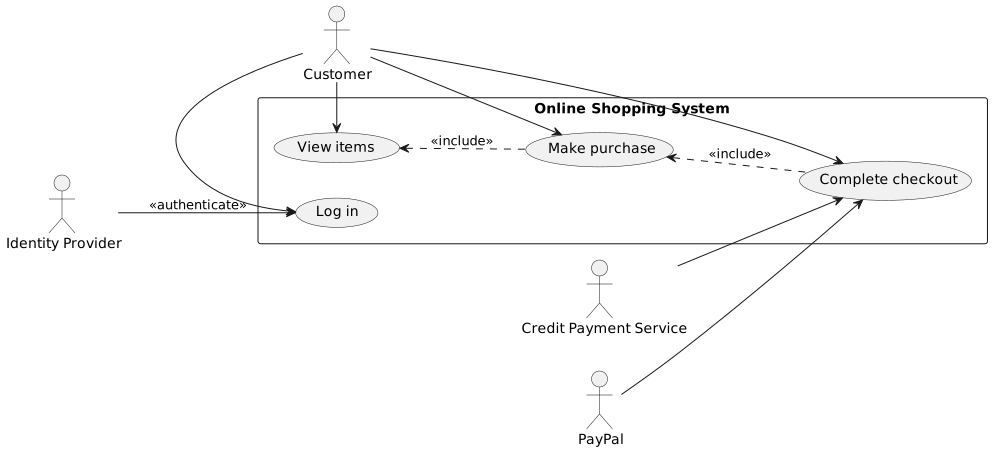
Use Case with ‘Include’ Relationship

This diagram shows a use case with an ‘include’ relationship, indicating a use case that is always executed in another use case.

Example: Online Shopping

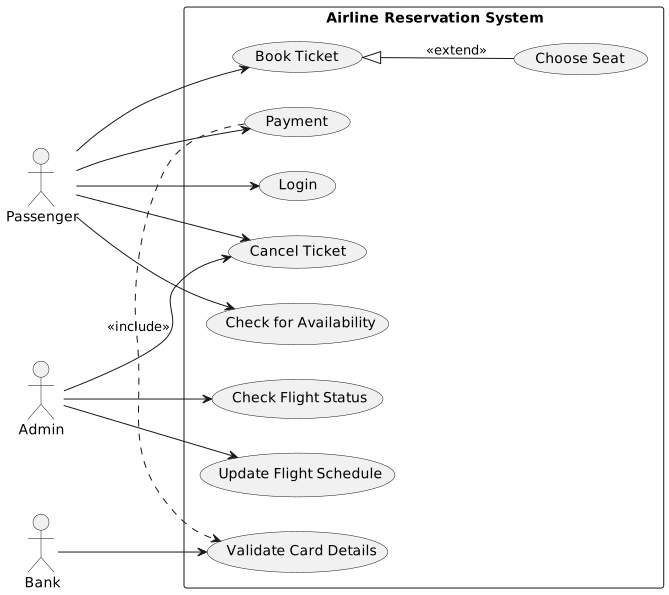
Use Case with ‘Extend’ Relationship

This diagram illustrates a use case with an ‘extend’ relationship, representing optional or conditional behavior.

Example: Airline Reservation

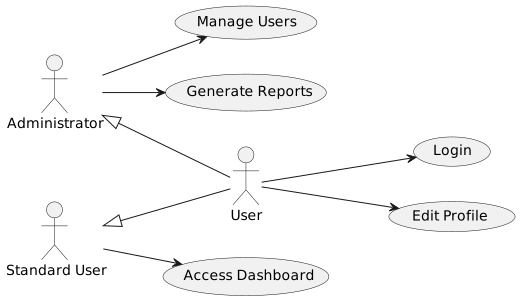
Use Case with Generalization

Generalization in use case diagrams is used to show inheritance between actors or use cases.

Class Diagrams

Class Diagrams

Class Diagrams depict classes, their attributes, operations, and the relationships between them, providing a static view of the application.

Utilizing Class Diagrams Effectively

Key Terms in Class Diagrams:

  • Class: The blueprint for objects, defining a type with its attributes and operations.

  • Attributes: Characteristics or properties of a class (e.g., a ‘User’ class might have attributes like ‘username’ and ‘email’).

  • Operations: Functions or methods the class can perform (e.g., ‘login’ or ‘register’ for a ‘User’ class).

  • Relationships: Connections between classes that show how they interact or are related to each other.

Types of Relationships

  • Associations: Links between classes.

  • Generalizations: Hierarchical parent-child class relationships.

  • Dependencies: When one class uses another.

When to use class diagrams

  • Early Development: To outline system structure, define key classes, and their interactions.
  • Documentation: To provide a systematic blueprint for understanding and future maintenance.

Classe Diagram

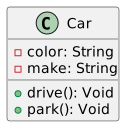
  • Class Structure:
    • Typically divided into three sections: Name at the top, attributes in the middle, and operations at the bottom.
    • Attributes: Represent the data the class holds. E.g., a ‘Car’ class might have attributes like ‘color’ and ‘make’.
    • Operations: What the class can do, E.g., a ‘Car’ class might have operations like ‘drive’ and ‘park’.

Classe Diagram: Representing Objects

  • Objects:
    • An instance of a class. If you think of a class as a blueprint, an object is a building made from that blueprint.
    • In diagrams, objects are often represented with underlined names to differentiate from classes.

Classes

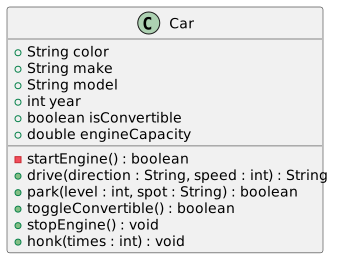
public class Car {
    private String color;
    private String make;
    private String model;
    private int year;
    private boolean isConvertible;
    private double engineCapacity;

    public Car(String color, String make, String model, int year, boolean isConvertible, double engineCapacity) {
        this.color = color;
        this.make = make;
        this.model = model;
        this.year = year;
        this.isConvertible = isConvertible;
        this.engineCapacity = engineCapacity;
    }

    private boolean startEngine() {
        // Implementation
        return true;
    }

    public String drive(String direction, int speed) {
        // Implementation
        return "Driving " + direction + " at " + speed + "mph";
    }

    public boolean park(int level, String spot) {
        // Implementation
        return true;
    }

    public boolean toggleConvertible() {
        // Implementation
        return isConvertible = !isConvertible;
    }

    public void stopEngine() {
        // Implementation
    }

    public void honk(int times) {
        // Implementation
        for (int i = 0; i < times; i++) {
            // Honking logic
        }
    }
}

Associations: Basics of Associations

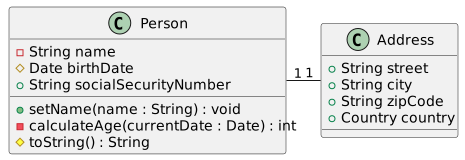
  • Associations represent the relationships between classes.
  • They can be one-to-one, one-to-many, or many-to-many.

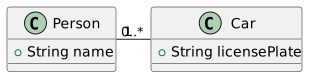
Associations: Multiplicity

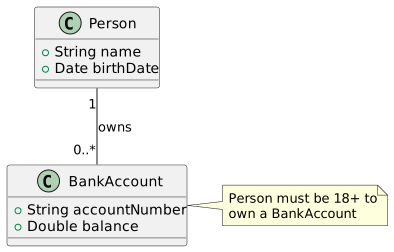
Describes how many instances of one class can be associated with instances of another class.

  • E.g., ‘one-to-many’ from a ‘Person’ to ‘Car’ might indicate that one person can own many cars.

Example:

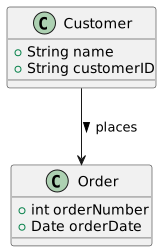
Associations: Navigability

  • Indicates if one class in the relationship can ‘see’ or navigate to the other class.
  • Represented by an arrow pointing towards the navigable class.

Example:

Attributes and Operations in Class Diagrams

  • Attributes:
    • Not just simple data types. Attributes can also be complex types or even other classes.
    • Can have visibility indicators: public (+), private (-), or protected (#).
  • Operations:
    • Operations can take parameters and return types.
    • Like attributes, operations also have visibility indicators.
    • Best practice is to keep operations focused on a single task or responsibility.

Attributes and Operations in Class Diagrams

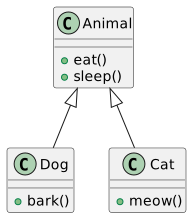
Inheritance in Generalization

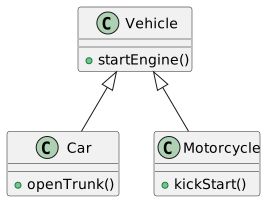
  • Generalization allows for the creation of a general class that can be extended by more specific classes.

Example:

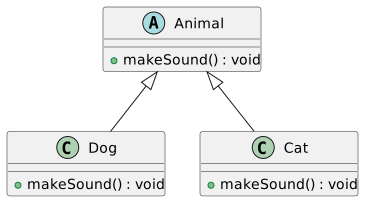
Polymorphism

  • Supports the concept of polymorphism where a subclass can be treated as an instance of a superclass.

Example:

Note: In this diagram, both Dog and Cat classes override the makeSound() method from the Animal class, demonstrating polymorphism.

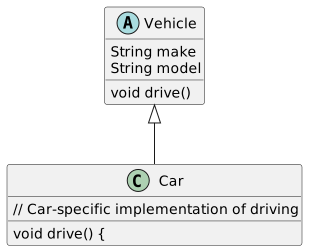
Abstract Classes

  • Abstract classes cannot be instantiated and often contain one or more abstract methods that subclasses must implement.

Example:

Benefits of Generalization

  • Promotes reusability and scalability in your system design.

  • Changes in the superclass propagate to subclasses, simplifying maintenance.

Example:

Using Constraints in Class Diagram

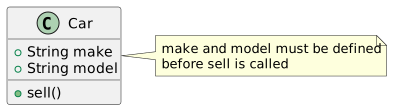
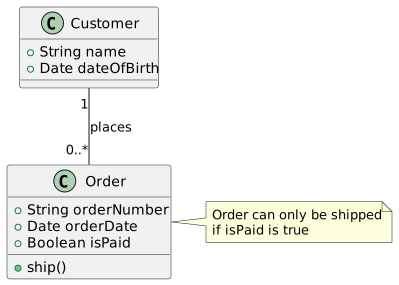
Constraints ensure that the system adheres to certain conditions, rules, or limitations. Often expressed in natural language or a more formal language like OCL (Object Constraint Language).

Example Constraint on ‘Car’

A ‘Car’ must have a ‘make’ and ‘model’ before it can be ‘sold’.

Diagram:

Example Constraint on ‘Order’

An ‘Order’ can’t be ‘shipped’ unless it’s been ‘paid’.

Object Diagrams

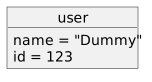
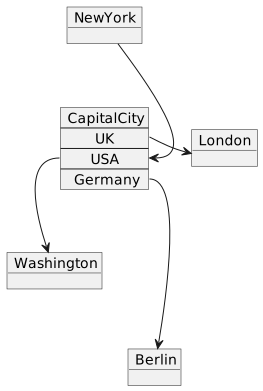
Object diagrams are snapshots of the instances in a system at a particular moment. They are akin to class diagrams but focus on instances (objects) rather than classes.

Components:

  • Objects with names and states.

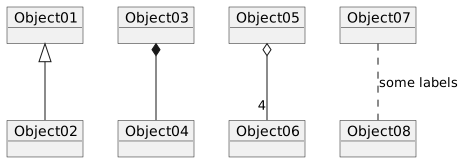
  • Links representing relationships between instances.

Relationships in Object Diagrams

Object Diagrams Example

Key Takeaways: Advanced Concepts

  • Appropriate Usage: Utilize advanced concepts only when necessary for complex systems or for notable enhancements in clarity and maintainability.

  • Striking a Balance: Aim for equilibrium between leveraging advanced features for benefits and maintaining simplicity for understandability.

Interaction Diagrams

Interaction Diagrams

  • Purpose: Visualizing dynamic behavior in systems through object interactions and message flows.
  • Types:
    • Sequence Diagrams: Emphasize time-ordered message sequences.
    • Collaboration Diagrams: Highlight the structural organization of interacting objects.

Sequence Diagrams Overview

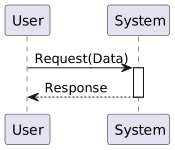
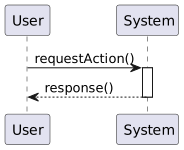
Sequence diagrams illustrate object interactions over time through message sequences. Key components include:

  • Objects/Actors: Shown as rectangles with lifelines.

  • Messages: Arrows between lifelines indicating communication flow.

  • Activation: Narrow rectangles on lifelines, denoting active periods for objects.

Sequence Diagrams

public class System {
    public String processRequest(String data) {
        // Process the data
        return "Response";
    }
}

public class User {
    public static void main(String[] args) {
        System system = new System();
        String data = "Data";
        String response = system.processRequest(data);
        System.out.println("Received response: " + response);
    }
}

Reading A Sequence Diagram

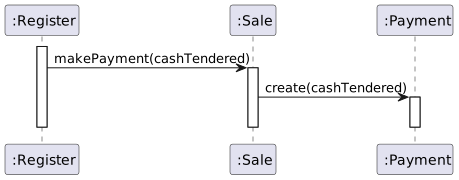
“Essentially, the makePayment message is sent from a Register instance to a Sale instance, which then creates a Payment instance. Here, ‘message’ means a method call.”

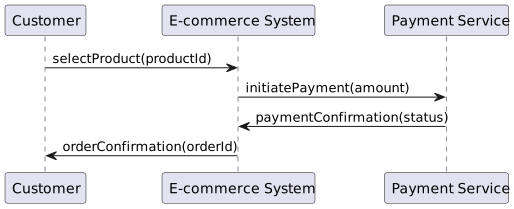
Sequence Diagrams: E-Commerce Example

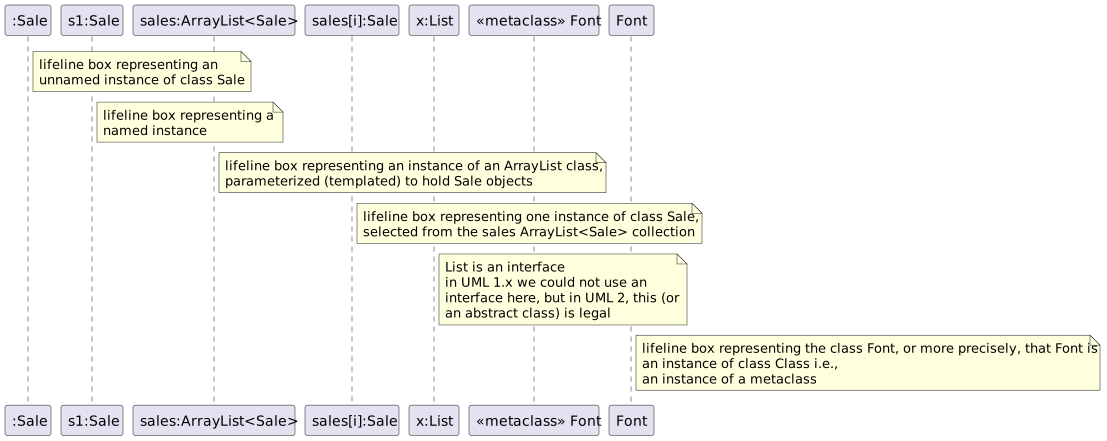
Sequence Diagrams: Lifeline Box Notation

  • Basic Elements: Lifeline boxes are fundamental to sequence diagrams, representing participants in the modeled sequence.
  • Participant Nature: Participants are typically software classes, though not exclusively.
  • Message Format Standard: The format for messages between participants is generally: return = message(parameter: parameterType) : returnType. Often, type information and parameters are omitted.

Sequence Diagram: Lifeline Box Notation

Sequence Diagrams: Messages

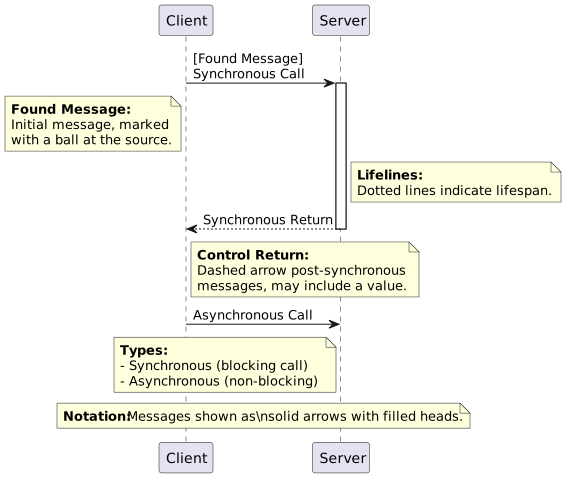
  • Notation: Messages shown as solid arrows with filled heads.

  • Lifelines: Dotted lines below each participant, indicating lifespan.

  • Found Message: Initial message, marked with a ball at the source.

  • Types:

    • Synchronous (blocking call)

    • Asynchronous (non-blocking, less common in OO).

  • Control Return: Dashed arrow, post-synchronous messages, may include a value.

Sequence Diagrams: Messages

Sequence Diagrams: Specifics

  • Execution Specification Bar / Activation Bar: Shows the operation on the call stack.
  • Replies to Messages: Typically represented by a value or a dotted line.
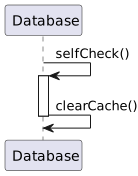
  • Message to Self: Denoted as “self” or “this.”
  • Instance Creation: Illustrated in sequence diagrams.
  • Instance Destruction: Indicated by an “X” at the end of a lifeline.

Note: See the next slide for more details.

Sequence Diagrams: Specifics

When to Use Interaction Diagrams

  • Modeling Scenarios: Ideal for understanding or communicating event flows in specific scenarios or use cases.
  • Designing Methods: Useful in crafting logic within class methods or services.
  • Performance Analysis: Aids in identifying bottlenecks due to excessive message exchanges.

Packages

Introduction to Packages

  • What Are Packages?
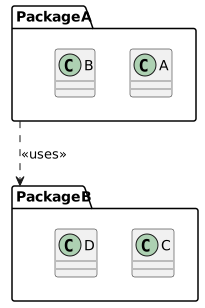
    • Packages are UML constructs that help organize elements (like classes, interfaces, or even other packages) into groups.
    • They’re particularly useful for managing large models, allowing you to divide them into smaller, more manageable sections.
Introduction to Packages

  • Uses of Packages:
    • Grouping: Collect related elements together.
    • Dependency Management: Understand and manage the dependencies between different parts of the system.
    • Scoping: Define what is included in a system or subsystem, helping with version control and release management.

Package Diagrams

  • Purpose: Visualize organization and structure of software packages.

  • Key Features:

    • Illustrate package contents and their interrelationships.

    • Highlight system-level relationships and dependencies.

Package Diagrams

  • Elements of Package Diagrams:
    • Packages: Represented as rectangles with tabs.
    • Dependencies: Often depicted as dashed arrows, showing how packages rely on each other.

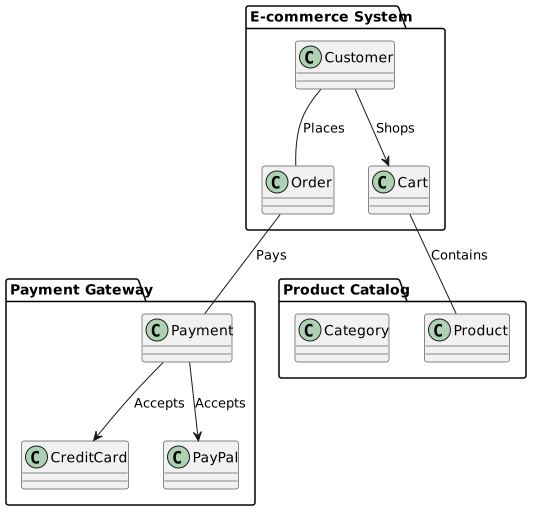
Package Diagram

This diagram represents an e-commerce system with packages for different functionalities, including ‘Customer’ interactions, ‘Payment Gateway’ handling, and ‘Product Catalog’ management. Arrows illustrate dependencies between classes and packages for functionality and data exchange.

When to Use Package Diagrams

  • Large Systems: Use package diagrams for large systems to simplify their structure.
  • Dependency Analysis: Helpful for understanding and managing dependencies between system components.

State Diagrams

State Diagrams

  • Purpose: Model the dynamic behavior of objects, showing how they respond to events based on their current state.

  • Components: States, transitions, events, and actions.
  • Use Cases: Ideal for objects with complex life cycles and those undergoing frequent changes due to events.

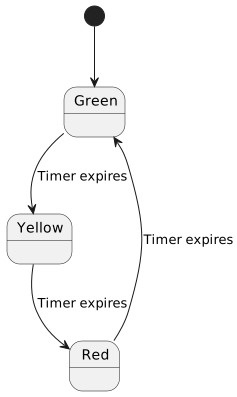
States and Transitions

  • States: Represent the various conditions or situations in which an object can exist. Each state represents a moment in time with a condition that is true for the object.
  • Transitions: Movements between states, often triggered by events, with associated actions.
State Diagram

Events and Actions

  • Events: Occurrences that trigger state changes, e.g., message receipt or internal condition fulfillment.

  • Actions: Operations in a state diagram, e.g., state entry/exit or state transition.

State Diagram

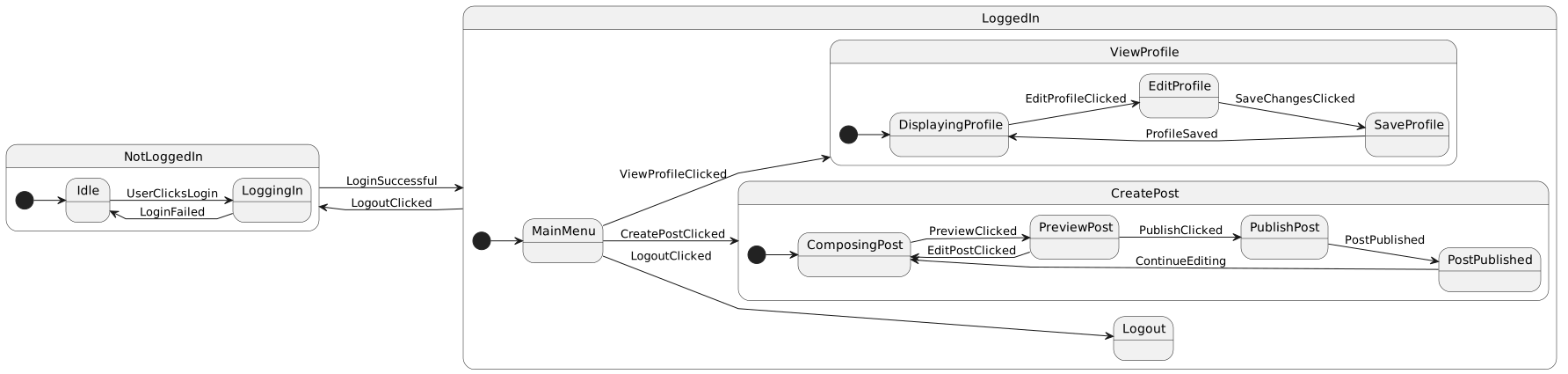
State Diagram: Composite state

Practical Tips for State Diagrams

  • Target Key Objects: Prioritize objects with intricate, critical behavior.
  • Simplicity First: Begin with core states and transitions; expand only for clarity or value.
  • Scenario Testing: Confirm accuracy by applying real-world scenarios.

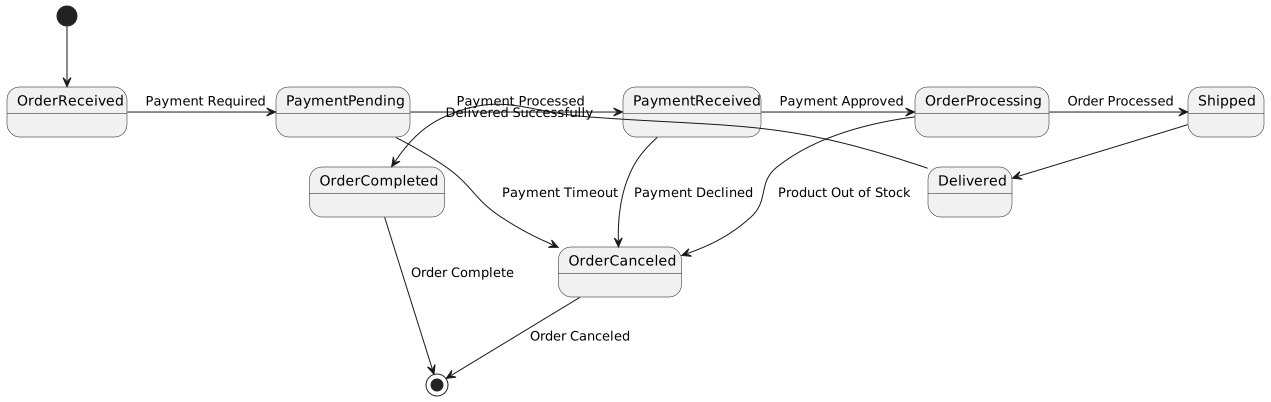
Example: User Account Management System

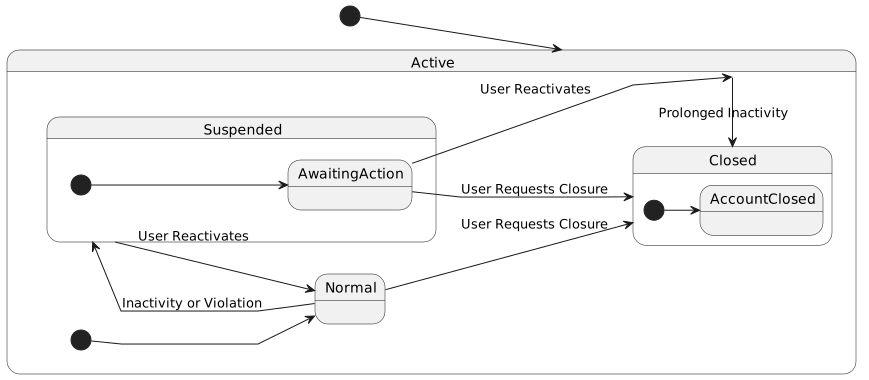
Overview: This diagram represents key stages in a user account’s life cycle, including creation, suspension, reactivation, and closure.

Example: User Account Management System

Key Points:

  • States: ‘Active’, ‘Suspended’, and ‘Closed’.

  • Transitions: Reflect account changes due to user actions or system policies.

Validating with Scenarios

  • Creation to Suspension:
    • From ‘Active’ to ‘Suspended’ due to policy violation or inactivity.
  • Reactivation:
    • From ‘Suspended’ to ‘Active’ through user action, like agreeing to terms or identity verification.
  • Closure:
    • ‘Active’ or ‘Suspended’ to ‘Closed’ by user choice or prolonged inactivity.

State Diagrams Usage

  • Complex Lifecycle: Visualize complex object lifecycles.

  • Reactive Systems: Manage responses to events in predictable systems.

  • Troubleshooting: Diagnose object behavior by mapping states and transitions.
Activity Diagrams

Activity Diagrams Overview

  • Purpose: Model system workflows, showing activities sequence and coordinating conditions.
  • Elements:

    • Activities: Work performed.

    • Transitions: Movement between activities.
    • Swimlanes: Responsible organizational units.
  • Application: Ideal for business processes and workflows, emphasizing sequence and activity conditions.

Example: Order Processing in an E-commerce System

Order Processing in E-commerce

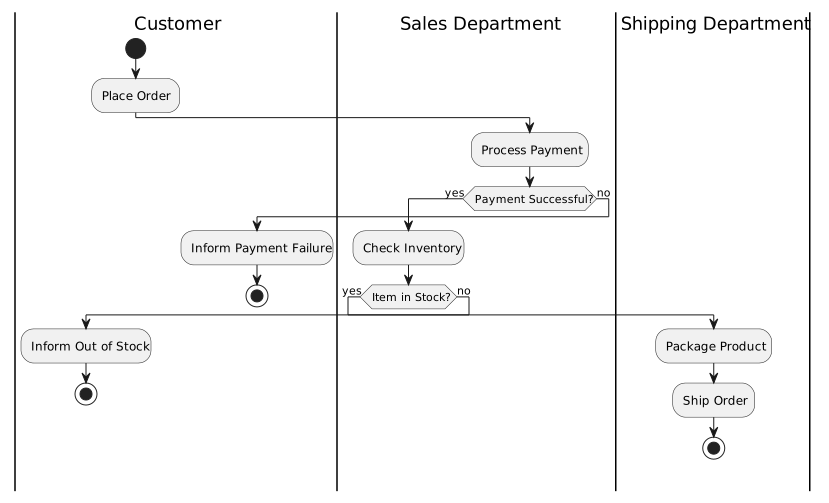
  • Overview: This diagram details the e-commerce order processing workflow.

  • Steps:

    1. Place Order: Initiated by the customer.
    2. Process Payment: Transition to check payment success.
    3. Check Inventory: Verifying item availability.
    4. Package Product: Preparing order for shipment.
    5. Ship Order: Final step in the workflow.
  • Transitions: Arrows depict the flow from placing the order to shipping, highlighting a sequential process.

  • Decision Points:

    • Payment Successful?: Determines continuation or customer notification for payment issues.
    • Item in Stock?: Checks inventory, leading to either packaging or notification of item unavailability.

Activity Decomposition

  • Complexity Breakdown: Simplify complex activities by dividing them into smaller, manageable sub-activities.

  • Workflow Management: This subdivision aids in effective understanding and control of the workflow.

  • Visual Representation: Use a large rectangle to represent the complex activity, enclosing smaller rectangles for each sub-activity, to illustrate the process breakdown.

Example: Decomposing the ‘Check Inventory’ Step

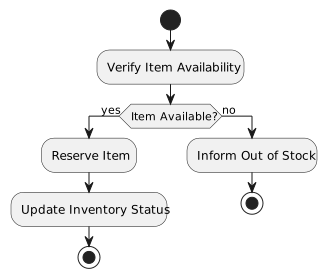
Decomposition Description: The “Check Inventory” step in the e-commerce order processing can be decomposed into detailed sub-steps such as “Verify Item Availability,” “Reserve Item,” and “Update Inventory Status.”

Example: Decomposing Complex Activities in UML Diagrams

  • Complex Activity: In the e-commerce order processing diagram, the “Check Inventory” step is a 3D box, signifying a complex activity.

  • Sub-activities: Inside the “Check Inventory” box, smaller boxes depict sub-activities: “Verify Item Availability,” “Reserve Item,” and “Update Inventory Status.”

  • Transitions: Arrows connect the sub-activities to show the flow within the “Check Inventory” phase.

Dynamic Concurrency

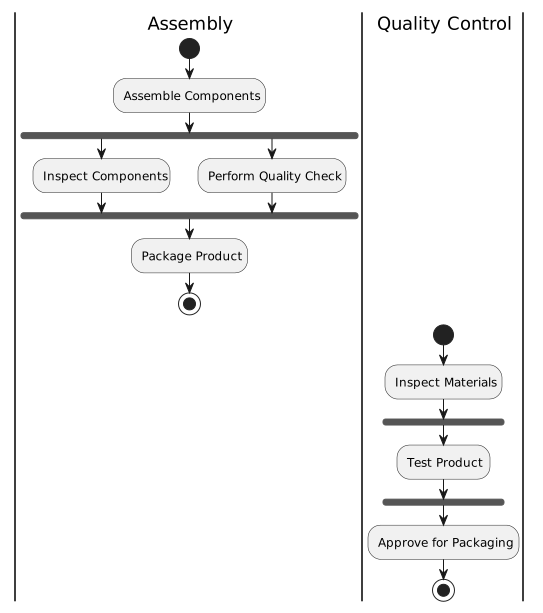
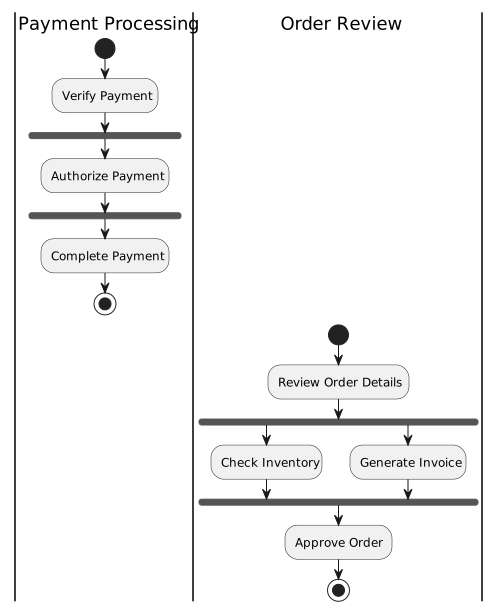
  • Parallel Processes: Activity diagrams can represent parallel processes that occur concurrently, rather than sequentially.
  • Forks and Joins: Using fork nodes to split behavior into parallel paths and join nodes to synchronize and bring the paths back together.
  • Synchronization: Ensuring that parallel processes are properly coordinated and synchronized where necessary.

Activity Diagram: Parallel Processes

Activity Diagram: Synchronization

Swimlanes in Activity Diagrams

  • Organizational Context: Swimlanes are used to represent the responsibilities of different individuals, departments, or systems in a workflow.
  • Partitioning: Activities are partitioned into different lanes, each representing a different actor or role responsible for those activities.
  • Clarifying Responsibilities: Swimlanes help in clarifying who or what is responsible for each part of the workflow.

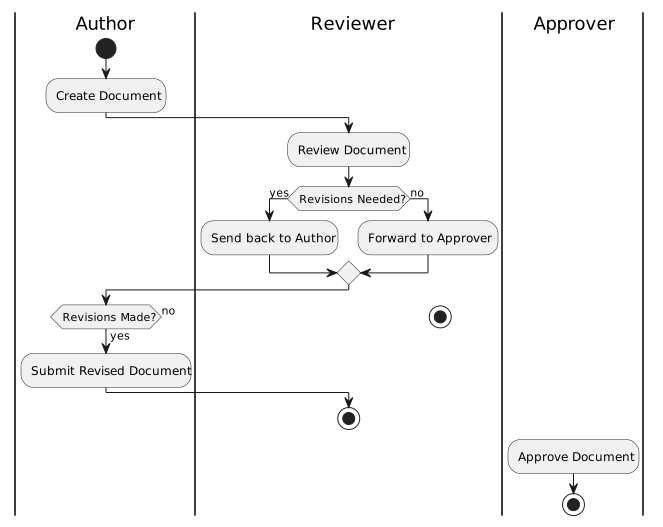
Example: Document Approval Process

Process Description: Author creates, Reviewer reviews, Approver approves.

Document Approval Process

  • Swimlanes: Separate lanes for “Author,” “Reviewer,” and “Approver” roles.

  • Activities: Boxes within each lane: “Create Document,” “Review Document,” “Final Approval.”

  • Transitions: Arrows depict flow: creation ➔ review ➔ possible revision ➔ approval.

When to Use Activity Diagrams

  • Modeling Workflows: Understand complex workflows with decisions, concurrency, or multiple actors/roles.

  • Business Process Reengineering: Analyze and improve business processes.

  • System Behavior: Model high-level system behavior, aiding early-stage design understanding.

Physical Diagrams

Introduction to Physical Diagrams

Purpose: Visualize system’s physical aspects, including software-hardware interaction and system organization.

Types:

  • Deployment Diagrams: Show the physical deployment of artifacts on nodes.

  • Component Diagrams: Illustrate the organization and dependencies among a set of components.

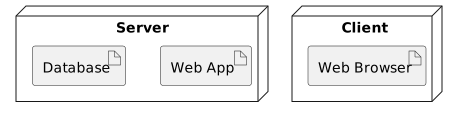
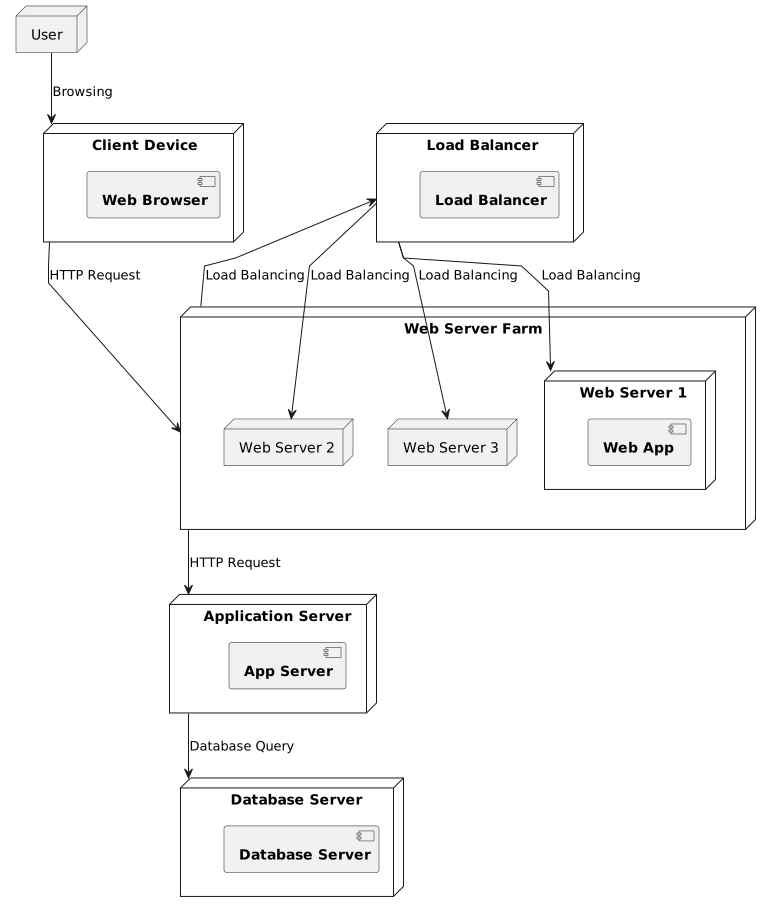
Deployment Diagrams

  • Overview: Deployment diagrams show the physical configuration of software and hardware.
  • Key Elements:
    • Nodes: Represent physical hardware like servers, computers, or devices.
    • Artifacts: Denote software components, databases, or systems deployed on the nodes.

Deployment Diagrams

When to Use Physical Diagrams

  1. System Architecture Planning: Use during initial planning to decide on system architecture.

  2. Performance & Scalability: Essential for performance and scalability considerations.

  3. Stakeholder Communication: Helps convey system’s physical aspects to all stakeholders, including non-technical ones.